

-
-
-
- Building blocks of the data model
- Basic concepts
- Classes
- Key fields
- Local lookup lists
- Fields and data types
- Defining the columns of a table
- Relations between classes
- Global lookup lists
- Filters
- Universal connected classes
- Deleting foreign records
- Class inheritance
- Storage of personal data on test and develop environment (scrambling)
-
- User interface versions
- Building blocks for user interface design
- Adding styles with a css
- Surrounding page
- Changing snippets
- Creating a custom login page (pre 3.4)
- Creating a custom login page
- Using velocity templates within the blueprint
- Create your own web pages
- HTML delivery requirements
- How to customize system mails
-
- Resource files
- Velocity - How does it work?
- Quick Velocity Tutorial
- Debugging velocity scripts
- Velocity Command Reference
- Script Editor Tutorial
- Using velocity for calculations
- Using predefined forms in a html design
- Velocity forms
- Data field identifiers
- Macros and methods
- Velocity library
- Velocity: using the #macro command
- velocity and xml
- Using AJAX in your velocity scripts
-
-
- Argon2 password conversion
- Introduction to security
- Secure development
- Security certification
- Security Exam
- Field properties concerning security
- Developing user groups securely
- Security considerations for user interface
- Secure file organization
- Securely using the request
- Cross Site Scripting (XSS)
- Other options concerning secure development
- Security analysis
- Secure deployment
- Secure application management
- Scrambling of testdata
- Anonymization of personal data
- Using robots.txt
- Permission settings
- Security measures
- Data encryption
-
- Search Engine Optimization
- OTP
- User Interface migration guide
- User account management
- Instructies voor implementatie van visueel editen van nieuwsbrieven
- Login as another user
- Support
- More information about moving to User Interface Version 4.0
- Standaard page layout
- Sections moved to layout
- Aanpassingen in release 2024-7
- Media library
- Aanpassingen in release 2024-10
- Analytics and Matomo
- Registration forms
- How to change names of classes and fields?
- Responsible Disclosure Policy
- How to upload a blob in Velocity?
- Aanpassingen in release 2024-2
- Instances
- Componenten in onze technologie
- Google Analytics
- Street and City helper (postcodecheck)
- Responsible disclosure-beleid
- Postcode check service (straat en huisnummer) kosten
- Expressions
- Regular Expression Reference
-
Filters
In several parts of the blueprint filters can be used. A filter is an exact definition of a subset of records in a certain class: like all persons younger than 18 years. Or all persons living in Melbourne.
In general filters are used either to search for data in the database, or to control the bussines logic of the application, but they can also be used to control the user interface of the application.
Some of the uses of filters are:
- To find a table of records when searching on a class.
- To control the appearance of fields. Fields that are not relevant in a certain context can be hidden.
- To define the read, insert, update or delete permissions of classes or fields for certain user groups.
- To define for what records a certain section would be displayed.
- To control when triggers fire, scripts are executed or helpers are used.
A filter is always related to one main class in the blueprint. In the nodes of the filter, fields from related classes can be used as defined in the data model.
Creating filters
Filters can be created in the blueprint, after which they can be used in many different places. When creating a filter, a name is required, aswell as the class this filter is applied to. A filter is always related to one class in the blueprint.
In the details view of a filter, the terms of the filter can be constructed. This is done by adding filter items. A newly created filter already contains a single empty item. In an item, either a boolean operator (and, or, not), or a field route can be chosen. These field routes can lead to fields of the class being filtered or fields of any related classes.
In the case a field route is selected, a filter operator such as "equals to", "<" or "=" can be selected. Take note that the operators shown depend on the data type of the field being filtered. When an operator is selected, a value can be given to compare the selected field to.
In the case a boolean operator is selected, children can be added to this item. If the 'and' operator is selected, records must match all the filter items that are added as children to the 'and' item. If 'or' is selected the record would only have to match one of this item's children. Now when we change it to "not", the search will return all the records that do not match the child filter. A "not" item can only have one child item.
Below is an example of a filter definition in the blueprint, if the records' total gross amount is larger than 1000, and either the order has been paid or the shipping date is earlier than today, the record matches the filter:
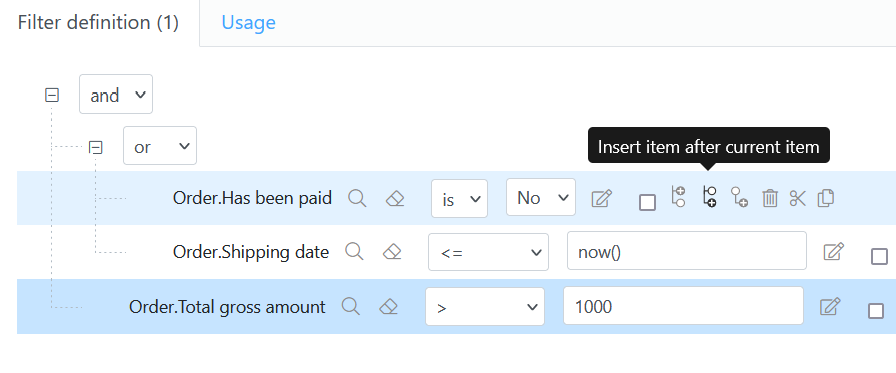
When ready, the filter can be tested. Testing a filter displays the results of the filter, these can be checked to see if the filter is working as intended.
For more info about searching and queries go to: Queries: Advanced search